Running the Juku E5104 operating system
When the «Juku» is powered on, the display shows the firmware monitor message RomBios, the monitor's version number, and the prompt ∗, after which the input cursor invitingly blinks:
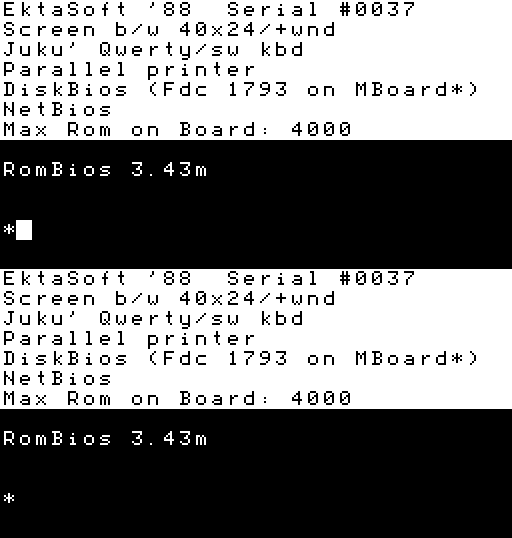
To boot the «Juku E5104» disk operating system EKDOS, press T, D, D, which in more detail is:
- insert the storage medium containing the OS into the reader
- give the firmware monitor the instruction
Tto load the OS - enter
Dto load the OS from an envelope disk,Nfrom the network, orTfrom tape
During boot, the OS command processor is read from the storage medium into RAM. When loading from an envelope disk you must also specify the type of system disk; for a double-sided envelope disk this is the instruction D. After a successful load, a startup message similar to the following appears:
52K EKDOS 2.30

Drive assignments:

<A> — 5" 786K
<B> — 5" 786K
<C> — RAM disk 192K
After that the prompt A> appears, indicating the OS's readiness; it lets you enter commands or run programs. For instance it is wise to start by looking at the file catalogue on the disk with the command DIR, or to read the included message by entering TYPE READ.ME.
The prompt is any message issued by a program that shows the program is waiting for the user's next instructions. For example, entering A or B after the firmware monitor prompt ∗ launches the mini-assembler or the ROM BASIC interpreter; T boots an OS1. Different programs have different prompts, whose use is described in their manuals.
The software contained in the ROM of the real-time-systems intelligent terminal «Juku E5104»2 consists of a monitor, a BASIC-language interpreter, a mini-assembler, communication drivers, and OS bootstrap loaders:
- The firmware monitor controls data processing, allows inspecting and modifying the computer's registers and memory contents, and provides the means for graphics programming.
- The BASIC interpreter is a tool for learning programming and writing less demanding programs.
- The mini-assembler is a compact translator for the experienced programmer, and also a tool for debugging programs. It does not fit in ROM at the same time as the BASIC interpreter, so only one of them can be selected at any one time.
- The operating system bootstrap loaders are the outpost in ROM for the more powerful software. With a magnetic-tape unit or floppy-disk drive connected, the loaders read into RAM the tape, network, or disk operating system, respectively.
- The communication driver is the computer-side part of the software. The remaining part is read into memory from an external storage device, so the computer network must contain at least one magnetic-tape unit or floppy-disk drive.
Running an additional operating system on top of the base software makes storing data on an external device easier and provides the user with tools that are missing from the firmware monitor.3
Operating-system commands
The command processor (KP) exchanges information between the user and the operating system. KP reads and processes the command lines entered from the keyboard4. KP's readiness to accept a command is expressed by the prompt A>. Depending on the type of OS, KP contains a selection of internal functions or commands:
DIR — list non-system files in the catalogue
TYPE — output a text file to the screen
REN — rename a file (syntax: REN newname=filename)
ERA — delete files
USER — choose user number (0–15)
SAVE — save memory contents to a file (syntax: SAVE n filename)
Depending on the tape operating system,5 the following may also be available:
OPEN — open the tape
LOAD — load a file from tape into RAM
RUN — run the loaded program
CLOSE — close the tape
MEM — general information about the tape
DIRS — list system files in the catalogue
CHECK — calculate the catalogue checksum
REST — restore deleted files
BLOAD — load blocks into RAM
DUMP — output the file contents in hexadecimal
BASIC — launch the BASIC in ROM
HELP — display the list of commands
MONID — exit to the monitor
Data is kept on external storage as files, whose names have the form:
filename.EXT
The file name contains up to eight characters and the extension (EXT) up to three characters, separated from each other by a dot. The extension may be omitted. The file name and extension may not contain: a comma (,), semicolon (;), colon (:), question mark (?), asterisk (∗), angle bracket (< or >), square bracket ([ or ]). Some of the more commonly used extensions:
ASM, MAC — assembly-language source file
BAS — BASIC compiler source file
PAS — PASCAL/MT+ translator source file
FOR — F(ORTRAN)80 compiler source file
TXT — text file
BAK — text editor backup file
DOC, DOK — documentation, instructions
HLP — instructions
PRN, LST — listing file
HEX — machine code in hexadecimal
$$$ — temporary file
COM — command / program / executable file
Files reside on tapes or disks whose reader designator is a letter of the alphabet followed by a colon separating it from the file name (e.g. A:, B:, or T: for tape). To change the active reader, enter the designator of the desired reader as a command. The result is that the active reader shown in the prompt changes — A>, B>, C> and so on.
The location of a file on the disk in a reader is indicated by placing the device designator in front of the file name (B:filename.EXT).
When using the internal functions ERA, REST, DIR, DIRS, the file name and extension can be specified either uniquely or with wildcards. Wildcards use the characters ∗ and ?:
? — replaces a single character in the file name or extension, meaning "any character in this position"
∗ — replaces the file name or the extension, meaning "any name (or extension)"; an asterisk after the beginning of a name (or extension) replaces the rest of it, meaning "any name (or extension) with this prefix"
The forms ∗.∗ and ????????.??? are equivalent. Here and below, the term "file name" generally refers to the file identifier composed of the file name and extension.
Example:
A>ERA A??.∗— deletes all files whose name is 3 characters long and starts withA, regardless of extension
A>ERA B:A∗.COM— deletes from diskB:all files whose name starts withAand whose extension isCOM
Running program files
Ready-made programs are written in assembly or a high-level language and then translated into machine code executable by the KR580VM80A microprocessor.
Program (executable) files can be launched in response to the KP prompt A> on the same basis as OS commands. When a program is launched by name, the storage medium is searched for a file with that name and the extension COM. For example:
A>INDY
launches the program file that is on the storage medium inserted into device A: and whose name is INDY.COM. The program file is loaded into memory starting at the beginning of the user-program area (TT) at address 100H, and control is transferred to that address — that is, the program starts to run. If a program file name coincides with the name of an internal function, the latter is executed. If the executable file does not exist, the character ? and the program name are output on the next line of the screen.
After the program name, one or two parameters may be entered (usually the parameter is a file name); thus there are three possible forms of command-line reply to the OS prompt:
A>programname
A>programname parameter1
A>programname parameter1 parameter2
From these parameters, KP forms one or two file control blocks (FJP) in the system-parameter zone (ST); if there are no parameters, the FJPs are filled with spaces. The maximum length of the command line is 128 characters. After analysing the entered command line, the portion of the command line beginning with the character following the program name is stored in the 128-byte direct memory access buffer (OMP). The first byte of the KP buffer (at address 80H) contains the number of characters entered.
When debugging and testing programs, it is useful to know the system's memory map. For JUKU operating systems it is broadly as follows:
Address 0000System-parameter zone (ST) #1 0000:JMP CA03(KP start address)0005:JMP BC06(EKDOS address)005C: File control block (FJB) #1006C: FJB #20080: 128B direct memory access (OMP) buffer0100User-program area (TT) B400Command processor (KP) BC06: EKDOS, i.e. CP/M functionsCA03: KP prompt launch addressD400System-parameter zone (ST) #2 D800Video memory, in memory modes 1–2 reading from ROM FD80System-parameter zone (ST) #3 FF26: Network functionsFF46: System fieldsFF68: BIOS core functionsThe user area holds user programs that have been loaded into memory from the storage medium. For example, while editing text, the TT contains the text editor and the text being edited. The memory map may differ in details depending on the OS type and version — for instance with the tape OS firmware (BLOS), TT ends at
BEFF, an additional 2KB OMP buffer sits atBFC0–C7BF, the tape file catalogue is atD200–D5FF, and ST #2 starts atD600.12
Useful control keys
When operating the command line, the following control codes (the CTRL key together with another key) are available:
CTRL+S — temporarily pause the display
CTRL+C — interrupt the running program
CTRL+ESC — interrupt the running program, transferring control to the active prompt
CTRL+SHIFT+ESC — interrupt the running program, transferring control to the monitor
CTRL+Z — end of input (PIP and ED)
CTRL+X — delete the line and put the cursor at the start of the line
CTRL+H — (= backward arrow) backspace the cursor, deleting the character
CTRL+J — (= line feed) ends the input
CTRL+M — (= return) ends the input
RETURN — the return key ends the input
The OS's default behaviour can be toggled using escape sequences (the ESC key, then keys and RETURN):
ESC M 0 — 40x24 screen layout
ESC M 1 — 53x24 screen layout
ESC M 2 — 64x20 screen layout (an 80x24 layout is also possible6)
ESC 0 — disable the key-press tone
ESC 1 — enable the key-press tone
ESC 2 — disable screen scrolling
ESC 3 — enable screen scrolling
ESC 4 — hide the cursor
ESC 5 — show the cursor
ESC : — smooth-scroll mode
ESC ; — jump-scroll mode
The screen can be cleared and the cursor returned to the top with the escape sequence ESC L or with the control code SHIFT+ERASE.
The above is largely a shortened and generalised version of the tape-OS manual cited in the first reference, with disk-OS material added but without all the tape-OS material removed. The adapted manual tries, where possible, to follow the style and terminology of the original.
-
Mikroarvuti «JUKU» kasutamisjuhend (1988); general OS description from p. 20ff; the memory map on p. 31ff differs from EKDOS's, but is informative; for more on it and on the OS commands, see p. 46ff ↩↩
-
Интеллектуальный терминал для систем реального времени E5104 (1988); the most up-to-date memory table is in book 1, p. 25 ↩↩
-
Mikroarvuti JUKU (1987); software description on p. 13ff ↩
-
Instructions for using the cassette-recorder utilities (1987?) ↩
-
JUKU PC UTILITIES DISK #4 (1989), note 1 on the 80x24 screen mode ↩