Running JUKU in the MAME emulator
Starting with MAME version 0.272, JUKU is in the venerable list of working abandonware1 and you can get Estonia's legendary school computer running on your desktop without much fuss (the web version, for trying it out, is here). To do so:
- Download the desktop version of the MAME emulator
- Place the JUKU firmware ZIP into the downloaded MAME's
romsdirectory - Launch MAME, choose JUKU E5104 as the system and EKDOS 2.30
- Confirm that JUKU starts with the default RomBios 3.43m firmware
- After the system properties are displayed, power is applied to the rare specimen
The display shows the firmware monitor message RomBios, the monitor's version number, and the prompt ∗, after which the input cursor blinks invitingly:
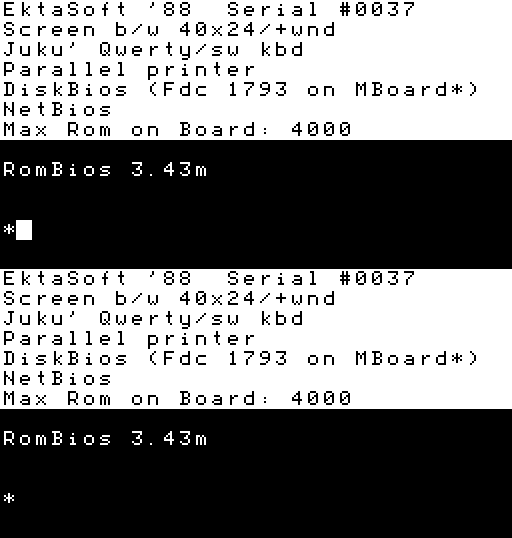
To boot the JUKU E5104 operating system EKDOS, press T, D, D; more detailed operating-system instructions can be found here.
Running software
But what good is an operating system without software? JUKU's 3+1 system discs with their software are available from MAME's software list starting with version 0.274; historical floppies can be found in the Museum of Electronics' JUKU file archive, and most of the software is described in the catalog.
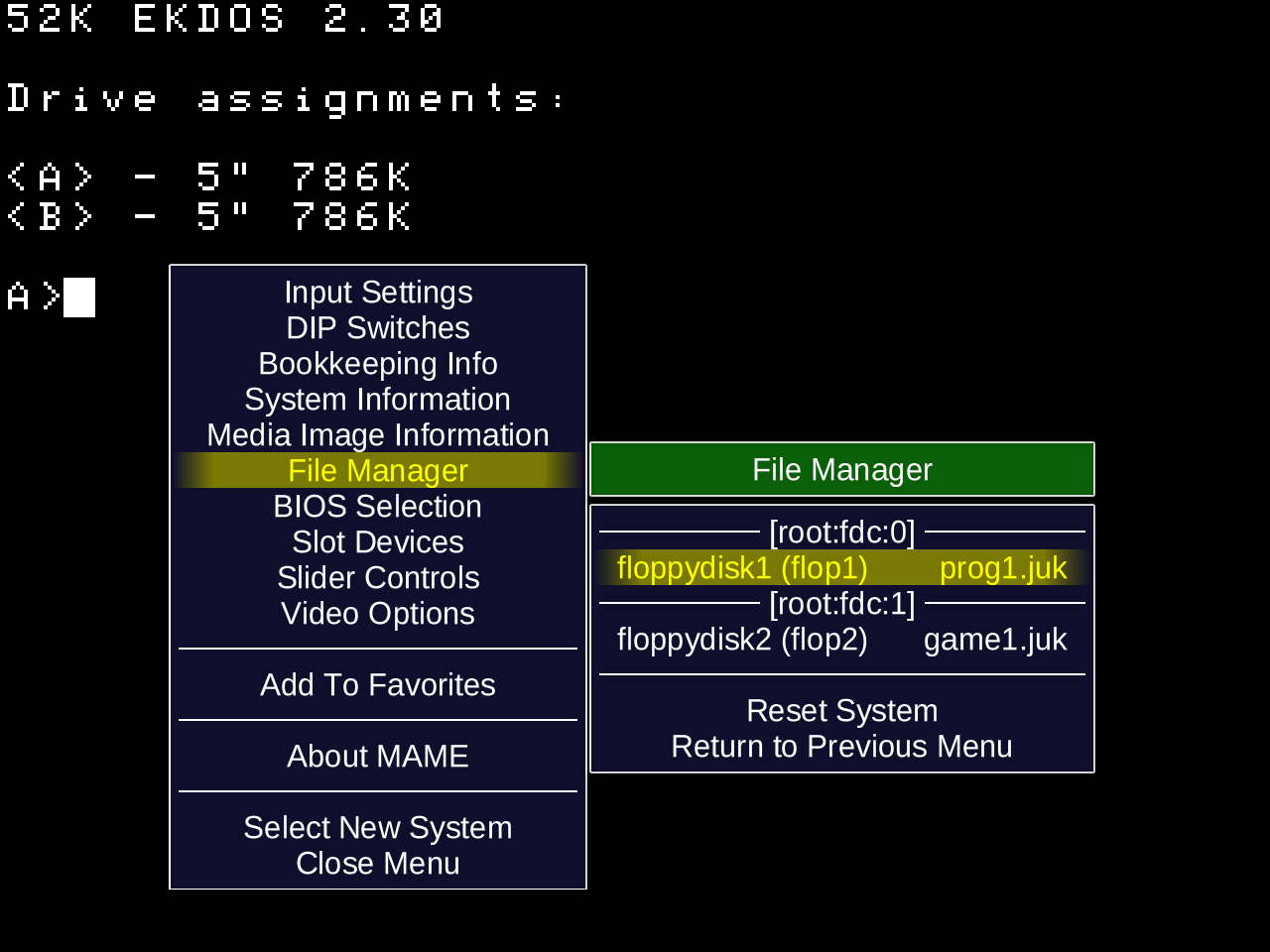
To use a floppy disc, it must be inserted into the emulated JUKU. For that you first need to unlock MAME's system keys using Scroll Lock (also known as MAME Lock), after which you can open MAME's system menu by pressing Tab.
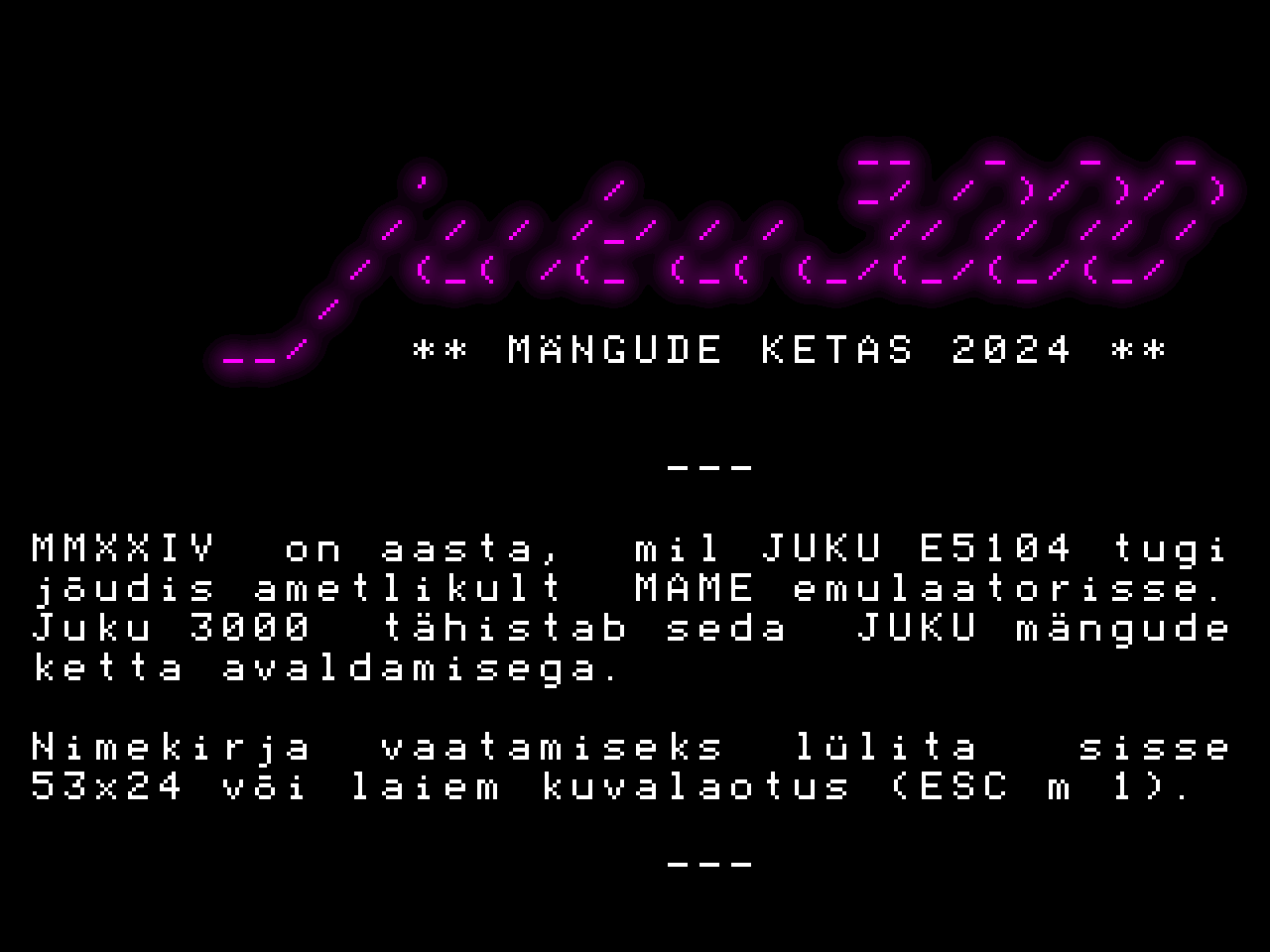
Floppies, i.e. JUK files, can be added under File Manager, and by default you can choose between various JUKU system discs from MAME's software list (software list) — more software and games can be found in the JUKGAME/JUKPROG series. To mark the emulator being ready, we also released the JUKU 3000 games disc 2024, which captures the state of the GAME1.JUK disc of the November 2024 web emulator. JUKU-era image material and user programs can be found on the web emulator's PROG1.JUK disc.
| MAME floppy menu | Games disc 2024 |
|---|---|
 |
 |
You can switch the active disc in EKDOS by typing the drive letter and a colon after the prompt (e.g. A: or B:); software, i.e. COM executables, can be launched by typing the desired program name after the prompt. The command DIR shows the list of files on the disc. To check that the system is working, you can try whether you can launch the well-known JUKU game INDY from the GAME1.JUK disc.
In general, the first sensible thing to do in MAME for JUKU is to disable all bilinear filtering settings, which suit blurrier TV-game pictures but not a school computer (e.g. under General Settings -> Video Options — don't forget to choose Save Settings from the main menu afterwards).
- If you record screen videos of JUKU games or software, then do them correctly!
- If you want to create your own JUKU disc images, here's the technical guide!
If you want to try programming on JUKU, you can leaf through the slides on the JUKU software ecosystem and then try the consolidated compilers/linkers disc TERE.JUK.
-
He who does not remember the past lives without a future! — Juhan Liiv ↩